Can you make your store’s product photos look better without arranging a separate photo shoot for every item? AI product photography lets you edit a real product image or place it in a generated setting, so you can build new visuals from the photos you already have.
For dropshippers, that is useful when a supplier gives you a clear view of the item but little context: a travel case with no travel scene, for example. The challenge is keeping the product accurate while making the picture more useful. This guide shows you how to prepare references, create a believable scene, check the result, and test it in your store.
What AI Product Photography Does
AI product photography uses artificial intelligence to create or edit commercial product images. You might remove a distracting background, extend a photo for a banner, or show the same item beside an open suitcase. For a dropshipping listing, start with a photograph of the exact product and variant you will sell.
There is a big difference between changing the setting and asking AI to invent the product. A text prompt for “a pink jewelry case” can produce a convincing case with the wrong closure or shape. Uploading the actual item gives you something to compare against, although the generated result can still change details.
Treat AI images as supporting visuals. Keep real photos for the details customers need to verify, such as stitching, labels, interior compartments, and what arrives in the parcel. A generated scene cannot tell you whether a zipper works or a supplier has changed materials.
Plan Your Product Photos
Before opening an image editor, decide what the shopper needs to understand. Your first listing image should make the exact item easy to recognize. A secondary lifestyle photo can explain where it fits into a customer’s day. An ad image may need a tighter crop so the product remains visible on a phone.
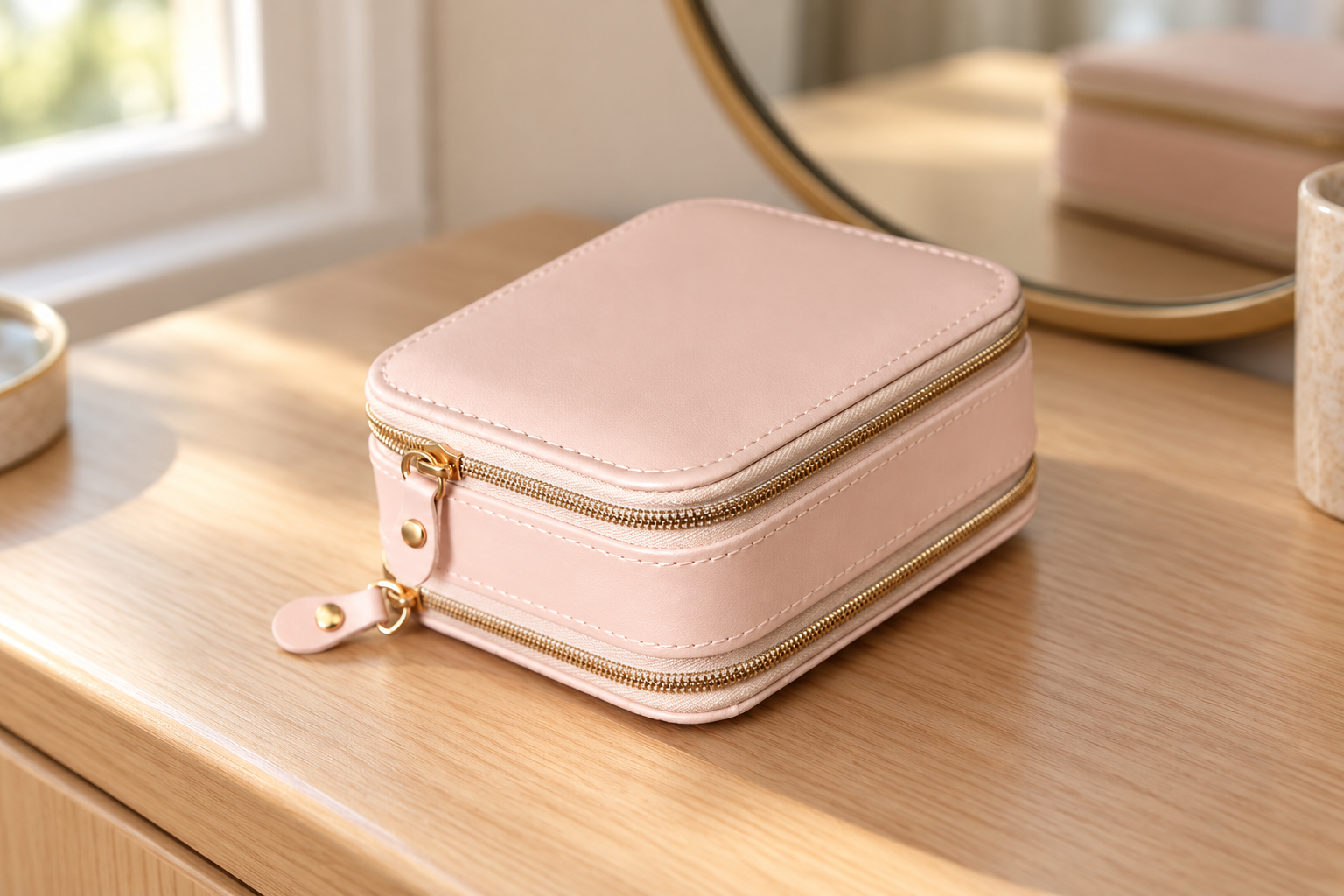
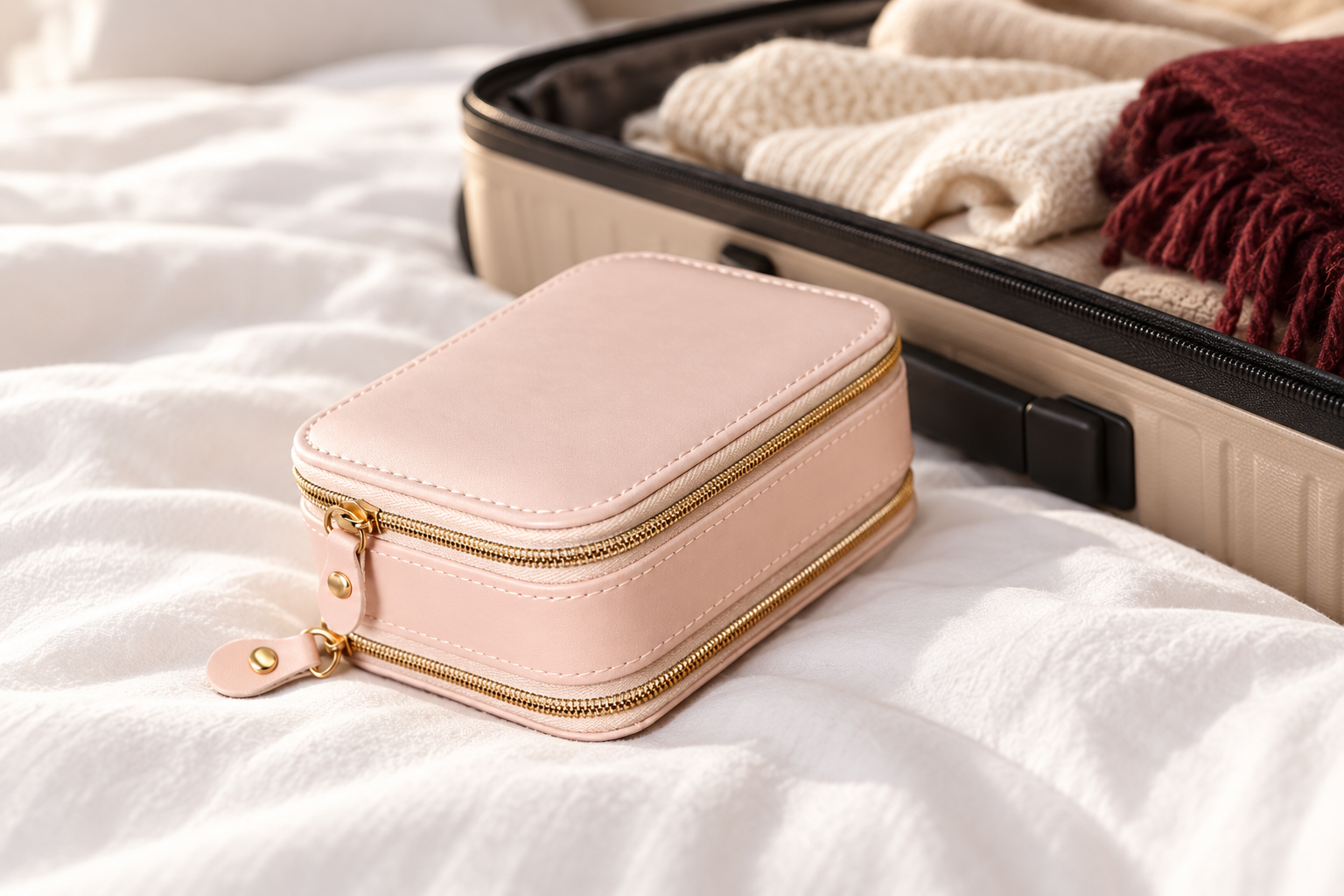
Take this USAdrop pink travel jewelry case. The reference shows a rounded rectangular case with two gold-colored zipper tracks. A dressing-table scene can suggest everyday storage; a scene beside a suitcase can introduce a travel use case. Neither scene should add an extra compartment or imply that jewelry pictured nearby comes with the order.
Keep one question behind each image. If the photograph is meant to show portability, use a sensible travel setting and retain the verified product dimensions in your listing. Do not rely on a generated hand or a random prop to prove scale. Attractive surroundings cannot replace a clear measurement.
Prepare Product Photography References
Ask your supplier for the highest-resolution originals available for your chosen SKU and color. Confirm that you may use and edit those photographs commercially. Access to a catalog does not automatically establish permission to reuse every image, and a competitor’s listing is not a substitute for an authorized source.
Choose a sharp reference with the full outline visible, neutral lighting, and no object hiding the closure. Save it with the SKU and variant name. If you want to show an open case, get a genuine open-case reference first. With only a closed view, keep the generated case closed rather than accepting an invented interior.
Order a sample before relying on the images to represent a product you intend to scale. Photograph the received item and compare it with the supplier’s files. If its color, shape, or finish differs, resolve that mismatch before producing a full gallery. AI can make an outdated supplier photograph look polished without making it correct.
For the jewelry case example, note the visible features before generating: pale pink exterior, rounded corners, stitched edges, and two zipper tracks. These are your review points. Keep uncertain claims, such as the material or storage capacity, out of both the prompt and the sales copy until you verify them.
Build Your AI Photography Scene
Use an editor that accepts product references and lets you control which parts of the image change. Where possible, protect the photographed item and generate only the surrounding area. If the tool redraws the whole frame, expect to spend more time checking the product itself. Try one SKU before committing to a large batch or paid plan.
Start with a simple setting. For the pink case, a pale wood dressing table near a window needs fewer invented interactions than a model holding the case open. Keep props away from the product’s outline and closures. A restrained background also makes it easier to spot a changed corner or missing zipper.
Write a Clear Photography Prompt
Try this with the approved reference: “Place this exact closed pink jewelry case on a pale wood dressing table in soft daylight. Preserve its rounded shape, pale pink color, stitched edges, two gold-colored zipper tracks, and visible zipper pulls. Keep the same viewing angle. Change only the surrounding setting. Do not open the case, add a logo, or change its construction. Leave the case unobstructed and in focus.”
Review that first result before asking for another setting. Once the product is accurate, change one instruction: replace the dressing table with a hotel packing scene beside a suitcase. Keep the product angle and lighting direction consistent. If a correction keeps changing the item, return to the source photograph rather than editing the distorted output repeatedly.
Check AI Product Photos Before Publishing
Put the reference and generated image side by side, then zoom in. On the jewelry case, compare the corners, seams, zipper count, pull placement, and color. Check that the bottom sits on the surface rather than floating. A good-looking image still fails if the shopper would receive a noticeably different item.
Review what the setting implies, too. An image of the case sitting beside a suitcase is a styling choice. A picture showing it submerged in water would imply a capability you have not established. Keep additional accessories clearly separate, and say what is included in the listing. Do not use generated before-and-after results as evidence of performance.
Check the rules for the destination channel before exporting. Google’s main product image requirements require accurate product depiction and disallow promotional overlays, watermarks, and borders. A lifestyle image that works in your store’s gallery may need a different treatment for a product feed; do not assume one approved file fits every placement.
Google Merchant Center’s AI-generated content requirements also require source-identifying metadata for generated images. Preserve embedded IPTC DigitalSourceType information and check that your export process retains it. Alt text describes the picture for readers; it does not replace this metadata. Keep the approved source, prompt, and exported file together so you can trace later changes.
Test Your Product Photography
Start with one product and a small set of approved images. You could compare a simple product-led gallery with the same gallery plus the jewelry case travel scene. Keep the price, shipping offer, and product copy steady where practical. Changing all of them at once makes it difficult to know what caused the result.
Choose the measure that matches the placement. For an ad, examine clicks alongside purchases and acquisition cost. For a product page, compare add-to-cart activity and completed orders. Do not choose a winner after a handful of visits or because one image collected more likes. Low-traffic stores may need a longer test before the difference means much.
Then read customer questions and return comments. If the new scene attracts more orders but customers report that the case is smaller than expected, revisit the image and dimensions. USAdrop’s guide to using returns data to improve product selection explains how to separate listing mismatches from product and fulfillment problems. Your image test should help customers choose the right item, not simply persuade more people to click.
Record the approved setting, crop, reference file, and reason for keeping it. When the supplier changes the SKU or variant, recheck the photographs before reusing the template. A consistent style is useful only while the item shown still matches the item shipped.
AI Product Photography FAQs
Can I use supplier photos as references?
Yes, if you have permission to use and edit them commercially and they show the exact SKU and variant you sell. Ask for original files and confirm that the current product still matches them.
Do I still need a product sample?
Yes, if you need to verify appearance, construction, or quality before committing to the product. An AI image cannot confirm what the customer will receive or how the item performs.
Can I start with free AI tools?
You can try a free tier, but check commercial-use rights, export limits, watermark restrictions, and whether your reference stays accurate. Judge the cost by approved images you can actually use, including your review time.
Can AI photos be my main image?
That depends on your channel’s current rules and whether the image accurately represents the product. A clear real-product photograph is a sensible starting point; use generated settings as additional images after checking their details.
What if AI keeps changing product details?
Use a clearer reference, protect the product area, and simplify the scene. If the tool still changes the item, keep the real photograph or have the original product composited into the new background.